
نمایش و پنهان کردن دکمه ها با استفاده از متریال در اندروید
شنبه 2 اردیبهشت 1396در این مقاله قصد داریم که با استفاده از 3 دکمه بتوانیم یه سری از دکمه ها را نمایش و یا مخفی کنیم یعنی کاربر با زدن دکمه بتواند دکمه ها را نمایش دهد و یا اینکه آن ها را مخفی کند که ما با استفاده از تریال دیزاین ها این کار را انجام می دهیم.

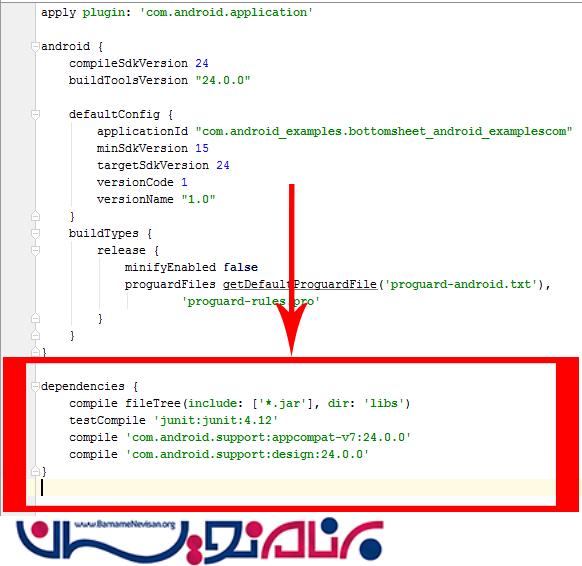
ابتدا در کلاس gradle قطعه کد زیر را قرار دهید:
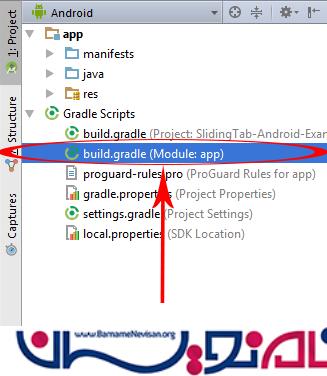
compile 'com.android.support:appcompat-v7:24.0.0'
compile 'com.android.support:design:24.0.0'
متد زیر برای باز کدن view از پایین است:
bottomSheetBehavior.setState(BottomSheetBehavior.STATE_EXPANDED);
و این متد برای بستن ان استفاده می شود:
bottomSheetBehavior.setState(BottomSheetBehavior.STATE_COLLAPSED);
و متد زیر برای باز کردن با استفاده از حالت dialog:
BottomSheetDialog bottomSheetDialog = new BottomSheetDialog(MainActivity.this);

View view1 = getLayoutInflater().inflate(R.layout.bottom_sheet_layout, null);

bottomSheetDialog.setContentView(view1);

bottomSheetDialog.show();
داخل کلاس قطعه کد زیر را بنویسید:
import android.support.design.widget.BottomSheetBehavior;
import android.support.design.widget.BottomSheetDialog;
import android.support.v7.app.AppCompatActivity;
import android.os.Bundle;
import android.view.View;
import android.widget.Button;

public class MainActivity extends AppCompatActivity {

    Button button1, button2, button3 ;

    BottomSheetBehavior bottomSheetBehavior ;

    BottomSheetDialog bottomSheetDialog ;

    @Override
    protected void onCreate(Bundle savedInstanceState) {
        super.onCreate(savedInstanceState);
        setContentView(R.layout.activity_main);

        button1 = (Button)findViewById(R.id.button1);
        button2 = (Button)findViewById(R.id.button2);
        button3 = (Button)findViewById(R.id.button3);

        bottomSheetBehavior = BottomSheetBehavior.from(findViewById(R.id.RelativeLayoutSheet));

        button1.setOnClickListener(new View.OnClickListener() {
            @Override
            public void onClick(View view) {

                bottomSheetBehavior.setState(BottomSheetBehavior.STATE_EXPANDED);

            }
        });

        button2.setOnClickListener(new View.OnClickListener() {
            @Override
            public void onClick(View view) {

                bottomSheetBehavior.setState(BottomSheetBehavior.STATE_COLLAPSED);

            }
        });

        button3.setOnClickListener(new View.OnClickListener() {
            @Override
            public void onClick(View view) {

                bottomSheetDialog = new BottomSheetDialog(MainActivity.this);

                View view1 = getLayoutInflater().inflate(R.layout.bottom_sheet_layout, null);

                bottomSheetDialog.setContentView(view1);

                bottomSheetDialog.show();

            }
        });


    }
}
و در لایه ی xml قطعه کد زیر را بنویسید:
<android.support.design.widget.CoordinatorLayout
android:id="@+id/CoordinatorLayout1"
xmlns:android="http://schemas.android.com/apk/res/android"
xmlns:app="http://schemas.android.com/tools"
android:layout_width="match_parent"
android:layout_height="match_parent"
android:fitsSystemWindows="true">


<RelativeLayout
    android:id="@+id/RelativeLayout1"
    android:layout_width="wrap_content"
    android:layout_height="wrap_content"
    app:layout_behavior="@string/appbar_scrolling_view_behavior">

    <Button
        android:id="@+id/button1"
        android:layout_width="fill_parent"
        android:layout_height="wrap_content"
        android:text="Show Bottom Sheet View"/>

    <Button
        android:id="@+id/button2"
        android:layout_below="@+id/button1"
        android:layout_width="fill_parent"
        android:layout_height="wrap_content"
        android:text="Hide Bottom Sheet View"/>

    <Button
        android:id="@+id/button3"
        android:layout_below="@+id/button2"
        android:layout_width="fill_parent"
        android:layout_height="wrap_content"
        android:text="Show Bottom Sheet Dialog"/>

</RelativeLayout>

    <include layout="@layout/bottom_sheet_layout" />


</android.support.design.widget.CoordinatorLayout>
کد xml برای دکمه هایی که از صفحه پایین نمایش داده می شود به صورت زیر است:
<RelativeLayout
    android:id="@+id/RelativeLayoutSheet"
    xmlns:android="http://schemas.android.com/apk/res/android"
    xmlns:app="http://schemas.android.com/apk/res-auto"
    android:layout_width="fill_parent"
    android:layout_height="250dp"
    app:layout_behavior="@string/bottom_sheet_behavior"
    android:background="#2196F3"
    app:behavior_hideable="true"
    >


    <Button
        android:layout_width="fill_parent"
        android:layout_height="wrap_content"
        android:text="Button 1 on Bottom Sheet"
        android:id="@+id/buttonSheet1"
        android:layout_centerHorizontal="true" />

    <Button
        android:layout_width="fill_parent"
        android:layout_height="wrap_content"
        android:text="Button 2 on Bottom Sheet"
        android:id="@+id/buttonSheet2"
        android:layout_below="@+id/buttonSheet1"
        android:layout_alignParentLeft="true"
        android:layout_alignParentStart="true" />

    <Button
        android:layout_width="fill_parent"
        android:layout_height="wrap_content"
        android:text="Button 3 on Bottom Sheet"
        android:id="@+id/buttonSheet3"
        android:layout_below="@+id/buttonSheet2"
        android:layout_alignParentLeft="true"
        android:layout_alignParentStart="true" />

    <Button
        android:layout_width="fill_parent"
        android:layout_height="wrap_content"
        android:text="Button 4 on Bottom Sheet"
        android:id="@+id/buttonSheet4"
        android:layout_below="@+id/buttonSheet3"
        android:layout_alignParentLeft="true"
        android:layout_alignParentStart="true" />

    <Button
        android:layout_width="fill_parent"
        android:layout_height="wrap_content"
        android:text="Button 5 on Bottom Sheet"
        android:id="@+id/buttonSheet5"
        android:layout_below="@+id/buttonSheet4"
        android:layout_alignParentLeft="true"
        android:layout_alignParentStart="true" />


</RelativeLayout>
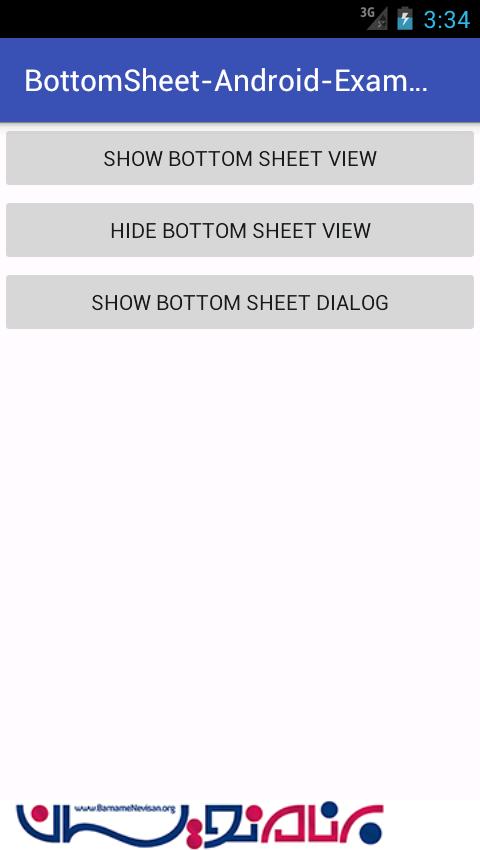
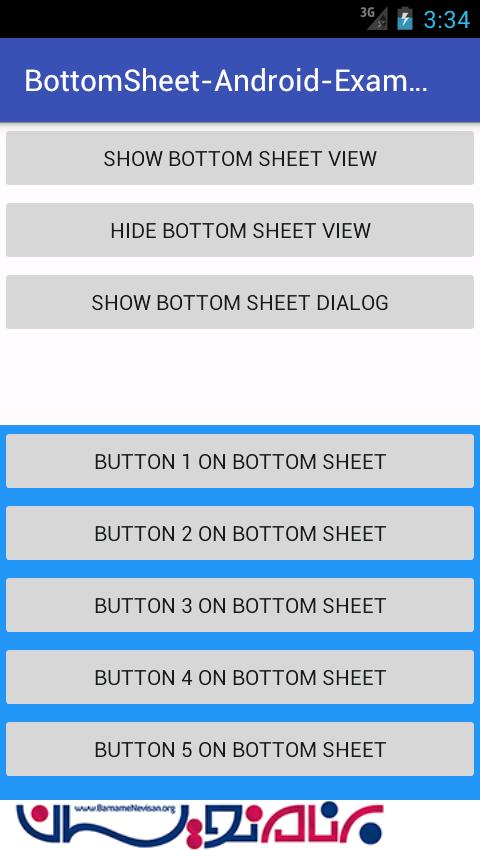
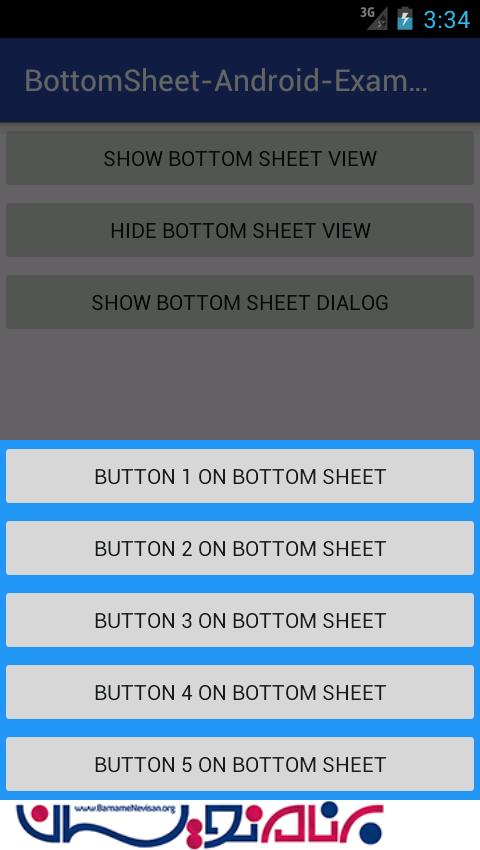
خروجی به صورت زیر خواهد بود:

- Android
- 2k بازدید
- 5 تشکر