
خواندن و نوشتن محتوای فایل های Excel بدون استفاده از Excel Automation
پنجشنبه 4 شهریور 1395در این مقاله با دو روش از روشهای خواندن اطلاعات از فایل های اکسل و نوشتن آنها در DataGridView ،بدون استفاده از Excel Automation (با استفاده از NPOI و ADO.Net )آشنا میشوید .
راه اول : با استفاده از ADO.NET - Microsoft.Jet.OleDb.4.0 (xls) و Microsoft.Jet.ACE.DB.*.0 (xlsx) Providers
Provider Microsoft.Jet.OleDb.4.0 یک راه کاملا ساده برای خواندن و نوشتن فایل های XLS است . این بصورت پیش فرض بروی Windows 2000 به بعد نصب شده است .
با استفاده از این ، شما توانایی خواندن و نوشتن فایل های XLS رو همانند یک پایگاه داده ، با استفاده از queriy ها دارید .
using System;
using System.Collections.Generic;
using System.ComponentModel;
using System.Data;
using System.Drawing;
using System.Linq;
using System.Text;
using System.Windows.Forms;

using System.Data.OleDb;

namespace Read___write_xls___display_in_grid
{
    public partial class Form1 : Form
    {
        OleDbConnection conn;
        OleDbDataAdapter adapter;

        DataTable dt;

        public Form1()
        {
            InitializeComponent();
        }

        private void Form1_Load(object sender, EventArgs e)
        {
            // connect to xls file
            // NOTE: it will be created if not exists
            conn = new OleDbConnection("Provider=Microsoft.Jet.OleDb.4.0;" +
                "Data Source=" + Application.StartupPath + "\\test.xls;" +
                "Extended Properties=Excel 8.0");
            conn.Open();

            // create a sheet "Sheet1" if not exists
            // NOTE: no "id" field needed
            // WARNING: spaces in sheet's name are supported if names are in [] (automatically replace with _)
            // spaces in column names NOT supported with OleDbCommandBuilder!
            try
            {
                string cmdText = "CREATE TABLE [Sheet 1] (text_col MEMO, int_col INT)";
                using (OleDbCommand cmd = new OleDbCommand(cmdText, conn))
                {
                    cmd.ExecuteNonQuery();
                }
            }
            catch { }

            // get sheets list into combobox
            dt = conn.GetSchema("Tables");
            for (int i = 0; i < dt.Rows.Count - 1; i++)
            {
                if (dt.Rows[i].ItemArray[dt.Columns.IndexOf
                ("TABLE_TYPE")].ToString() == "TABLE" &&
                    !dt.Rows[i].ItemArray[dt.Columns.IndexOf
                    ("TABLE_NAME")].ToString().Contains("$"))
                {
                    comboBox1.Items.Add(dt.Rows[i].ItemArray[dt.Columns.IndexOf("TABLE_NAME")]);
                }
            }
        }

        private void button1_Click(object sender, EventArgs e)
        {
            adapter = new OleDbDataAdapter("SELECT * FROM " + comboBox1.SelectedItem.ToString(), conn);

            new OleDbCommandBuilder(adapter);

            dt = new DataTable();
            adapter.Fill(dt);
            dataGridView1.DataSource = dt;
        }

        private void Form1_FormClosed(object sender, FormClosedEventArgs e)
        {
            if (adapter == null) return;

            adapter.Update(dt);
        }

        // show tooltip (not intrusive MessageBox) when user trying to input letters into INT column cell
        private void dataGridView1_DataError(object sender, DataGridViewDataErrorEventArgs e)
        {
            if (dt.Columns[e.ColumnIndex].DataType == typeof(Double))
            {
                Rectangle rectColumn;
                rectColumn = dataGridView1.GetColumnDisplayRectangle(e.ColumnIndex, false);

                Rectangle rectRow;
                rectRow = dataGridView1.GetRowDisplayRectangle(e.RowIndex, false);

                toolTip1.ToolTipTitle = "This field is for integers and decimals only.";
                toolTip1.Show(" ",
                          dataGridView1,
                          rectColumn.Left, rectRow.Top + rectRow.Height);
            }
        }

        private void dataGridView1_MouseDown(object sender, MouseEventArgs e)
        {
            toolTip1.Hide(dataGridView1);
        }
    }
}
همچنین شما میتوانید از Microsoft.ACE.OLEDB.*.0 providers برای خواندن فایلهای XLSX استفاده کنید
Microsoft Office شامل یکی از این Providerها میشود .
using System;
using System.Collections.Generic;
using System.ComponentModel;
using System.Data;
using System.Drawing;
using System.Linq;
using System.Text;
using System.Windows.Forms;

using System.Data.OleDb;

namespace Read___write_XLSX_via_ADO.NET___display_in_GRID
{
    public partial class Form1 : Form
    {
        OleDbConnection conn;
        OleDbDataAdapter adapter;

        DataTable dt;

        public Form1()
        {
            InitializeComponent();
        }

        private void Form1_Load(object sender, EventArgs e)
        {
            // connect to xls file
            // NOTE: it will be created if not exists
            try
            {
                conn = new OleDbConnection("Provider=Microsoft.ACE.OLEDB.12.0;" +
                    "Data Source=" + Application.StartupPath + "\\test.xlsx;" +
                    "Extended Properties=Excel 12.0 Xml");
                conn.Open();
            }
            catch
            {
                try
                {
                    conn = new OleDbConnection("Provider=Microsoft.ACE.OLEDB.14.0;" +
                        "Data Source=" + Application.StartupPath + "\\test.xlsx;" +
                        "Extended Properties=Excel 14.0 Xml");
                    conn.Open();
                }
                catch
                {
                    try
                    {
                        conn = new OleDbConnection("Provider=Microsoft.ACE.OLEDB.15.0;" +
                            "Data Source=" + Application.StartupPath + "\\test.xlsx;" +
                            "Extended Properties=Excel 15.0 Xml");
                        conn.Open();
                    }
                    catch
                    {
                    }
                }
            }

            // create a sheet "Sheet1" if not exists
            // NOTE: no "id" field needed
            // WARNING: spaces in sheet's name are supported if names are in [] (automatically replace with _)
            // spaces in column names NOT supported with OleDbCommandBuilder!
            try
            {
                string cmdText = "CREATE TABLE [Sheet 1] (text_col MEMO, int_col INT)";
                using (OleDbCommand cmd = new OleDbCommand(cmdText, conn))
                {
                    cmd.ExecuteNonQuery();
                }
            }
            catch { }

            // get sheets list into combobox
            dt = conn.GetSchema("Tables");
            for (int i = 0; i < dt.Rows.Count - 1; i++)
            {
                if (dt.Rows[i].ItemArray[dt.Columns.IndexOf("TABLE_TYPE")].ToString() == "TABLE" &&
                    !dt.Rows[i].ItemArray[dt.Columns.IndexOf("TABLE_NAME")].ToString().Contains("$"))
                {
                    comboBox1.Items.Add(dt.Rows[i].ItemArray[dt.Columns.IndexOf("TABLE_NAME")]);
                }
            }
        }

        private void button1_Click(object sender, EventArgs e)
        {
            adapter = new OleDbDataAdapter("SELECT * FROM " + comboBox1.SelectedItem.ToString(), conn);

            new OleDbCommandBuilder(adapter);

            dt = new DataTable();
            adapter.Fill(dt);
            dataGridView1.DataSource = dt;
        }

        private void Form1_FormClosed(object sender, FormClosedEventArgs e)
        {
            if (adapter == null) return;

            adapter.Update(dt);
        }

        // show tooltip (not intrusive MessageBox) when user trying to input letters into INT column cell
        private void dataGridView1_DataError(object sender, DataGridViewDataErrorEventArgs e)
        {
            if (dt.Columns[e.ColumnIndex].DataType == typeof(Double))
            {
                Rectangle rectColumn;
                rectColumn = dataGridView1.GetColumnDisplayRectangle(e.ColumnIndex, false);

                Rectangle rectRow;
                rectRow = dataGridView1.GetRowDisplayRectangle(e.RowIndex, false);

                toolTip1.ToolTipTitle = "This field is for integers and decimals only.";
                toolTip1.Show(" ",
                          dataGridView1,
                          rectColumn.Left, rectRow.Top + rectRow.Height);
            }
        }

        private void dataGridView1_MouseDown(object sender, MouseEventArgs e)
        {
            toolTip1.Hide(dataGridView1);
        }
    }
}
اما این نکته را در نظر داشته باشید که Provider های Jet و ACE برای فایل های اکسل استفاده میشوند و نه به عنوان متدهایی که برای خواندن پایگاه داده استفاده میشوند ، بنابراین ، سرعت خواندن اطلاعات از فایلهای Excel به اندازه خواندن اطلاعات از پایگاه داده ، سریع نیست .
راه دوم : استفاده از کتابخانه NPOI
NPOI یک کتابخانه سه قسمتیِ open-source است که برای خواندن و نوشتن فایل های xls, xlsx, docx مورد استفاده قرار میگیرد . که نیازی به MIcrosoft Excel و هر چیز از سه قسمت از برنامه/کتابخانه را ندارد .
XLS
using System;
using System.Collections.Generic;
using System.ComponentModel;
using System.Data;
using System.Drawing;
using System.Linq;
using System.Text;
using System.Windows.Forms;

using System.IO;

using NPOI.HSSF.Model; // InternalWorkbook
using NPOI.HSSF.UserModel; // HSSFWorkbook, HSSFSheet

namespace Read___write_XLS_via_NPOI___display_in_GRID
{
    public partial class Form1 : Form
    {
        HSSFWorkbook wb;
        HSSFSheet sh;

        public Form1()
        {
            InitializeComponent();
        }

        private void Form1_Load(object sender, EventArgs e)
        {
            // create xls if not exists
            if (!File.Exists("test.xls"))
            {
                wb = HSSFWorkbook.Create(InternalWorkbook.CreateWorkbook());

                // create sheet
                sh = (HSSFSheet)wb.CreateSheet("Sheet1");
                // 3 rows, 2 columns
                for (int i = 0; i < 3; i++)
                {
                    var r = sh.CreateRow(i);
                    for (int j = 0; j < 2; j++)
                    {
                        r.CreateCell(j);
                    }
                }

                using (var fs = new FileStream("test.xls", FileMode.Create, FileAccess.Write))
                {
                    wb.Write(fs);
                }
            }

            // get sheets list from xls
            using (var fs = new FileStream("test.xls", FileMode.Open, FileAccess.Read))
            {
                wb = new HSSFWorkbook(fs);

                for (int i = 0; i < wb.Count; i++)
                {
                    comboBox1.Items.Add(wb.GetSheetAt(i).SheetName);
                }
            }
        }

        private void button1_Click(object sender, EventArgs e)
        {
            // clear grid before filling
            dataGridView1.Rows.Clear();
            dataGridView1.Columns.Clear();

            // get sheet
            sh = (HSSFSheet)wb.GetSheet(comboBox1.SelectedItem.ToString());

            int i = 0;
            while (sh.GetRow(i) != null)
            {
                // add necessary columns
                if (dataGridView1.Columns.Count < sh.GetRow(i).Cells.Count)
                {
                    for (int j = 0; j < sh.GetRow(i).Cells.Count; j++)
                    {
                        dataGridView1.Columns.Add("", "");
                    }
                }

                // add row
                dataGridView1.Rows.Add();

                // write row value
                for (int j = 0; j < sh.GetRow(i).Cells.Count; j++)
                {
                    var cell = sh.GetRow(i).GetCell(j);

                    if (cell != null)
                    {
                        // TODO: you can add more cell types capability, e. g. formula
                        switch (cell.CellType)
                        {
                            case NPOI.SS.UserModel.CellType.Numeric:
                                dataGridView1[j, i].Value = sh.GetRow(i).GetCell(j).NumericCellValue;
                                break;
                            case NPOI.SS.UserModel.CellType.String:
                                dataGridView1[j, i].Value = sh.GetRow(i).GetCell(j).StringCellValue;
                                break;
                        }
                    }
                }

                i++;
            }
        }

        private void button2_Click(object sender, EventArgs e)
        {
            for (int i = 0; i < dataGridView1.RowCount - 1; i++)
            {
                if (sh.GetRow(i) == null)
                    sh.CreateRow(i);

                for (int j = 0; j < dataGridView1.ColumnCount; j++)
                {
                    if (sh.GetRow(i).GetCell(j) == null)
                        sh.GetRow(i).CreateCell(j);

                    if (dataGridView1[j, i].Value != null)
                    {
                        sh.GetRow(i).GetCell(j).SetCellValue(dataGridView1[j, i].Value.ToString());
                    }
                }
            }

            using (var fs = new FileStream("test.xls", FileMode.Open, FileAccess.Write))
            {
                wb.Write(fs);
            }
        }
    }
}
XLSX
using System;
using System.Collections.Generic;
using System.ComponentModel;
using System.Data;
using System.Drawing;
using System.Linq;
using System.Text;
using System.Windows.Forms;

using System.IO; // File.Exists()

using NPOI.XSSF.UserModel; // XSSFWorkbook, XSSFSheet

namespace Read___write_XLSX_via_NPOI___display_in_GRID
{
    public partial class Form1 : Form
    {
        XSSFWorkbook wb;
        XSSFSheet sh;

        public Form1()
        {
            InitializeComponent();
        }

        private void Form1_Load(object sender, EventArgs e)
        {
            // create xls if not exists
            if (!File.Exists("test.xlsx"))
            {
                wb = new XSSFWorkbook();

                // create sheet
                sh = (XSSFSheet)wb.CreateSheet("Sheet1");
                // 3 rows, 2 columns
                for (int i = 0; i < 3; i++)
                {
                    var r = sh.CreateRow(i);
                    for (int j = 0; j < 2; j++)
                    {
                        r.CreateCell(j);
                    }
                }

                using (var fs = new FileStream("test.xlsx", FileMode.Create, FileAccess.Write))
                {
                    wb.Write(fs);
                }
            }

            // get sheets list from xlsx
            using (var fs = new FileStream("test.xlsx", FileMode.Open, FileAccess.Read))
            {
                wb = new XSSFWorkbook(fs);

                for (int i = 0; i < wb.Count; i++)
                {
                    comboBox1.Items.Add(wb.GetSheetAt(i).SheetName);
                }
            }
        }

        private void button1_Click(object sender, EventArgs e)
        {
            // clear grid before filling
            dataGridView1.Rows.Clear();
            dataGridView1.Columns.Clear();

            // get sheet
            sh = (XSSFSheet)wb.GetSheet(comboBox1.SelectedItem.ToString());

            int i = 0;
            while (sh.GetRow(i) != null)
            {
                // add neccessary columns
                if (dataGridView1.Columns.Count < sh.GetRow(i).Cells.Count)
                {
                    for (int j = 0; j < sh.GetRow(i).Cells.Count; j++)
                    {
                        dataGridView1.Columns.Add("", "");
                    }
                }

                // add row
                dataGridView1.Rows.Add();

                // write row value
                for (int j = 0; j < sh.GetRow(i).Cells.Count; j++)
                {
                    var cell = sh.GetRow(i).GetCell(j);

                    if (cell != null)
                    {
                        // TODO: you can add more cell types capability, e. g. formula
                        switch (cell.CellType)
                        {
                            case NPOI.SS.UserModel.CellType.Numeric:
                                dataGridView1[j, i].Value = sh.GetRow(i).GetCell(j).NumericCellValue;
                                break;
                            case NPOI.SS.UserModel.CellType.String:
                                dataGridView1[j, i].Value = sh.GetRow(i).GetCell(j).StringCellValue;
                                break;
                        }
                    }
                }

                i++;
            }
        }

        private void button2_Click(object sender, EventArgs e)
        {
            for (int i = 0; i < dataGridView1.RowCount - 1; i++)
            {
                if (sh.GetRow(i) == null)
                    sh.CreateRow(i);

                for (int j = 0; j < dataGridView1.ColumnCount; j++)
                {
                    if (sh.GetRow(i).GetCell(j) == null)
                        sh.GetRow(i).CreateCell(j);

                    if (dataGridView1[j, i].Value != null)
                    {
                        sh.GetRow(i).GetCell(j).SetCellValue(dataGridView1[j, i].Value.ToString());
                    }
                }
            }

            using (var fs = new FileStream("test.xlsx", FileMode.Open, FileAccess.Write))
            {
                wb.Write(fs);
            }
        }
    }
}
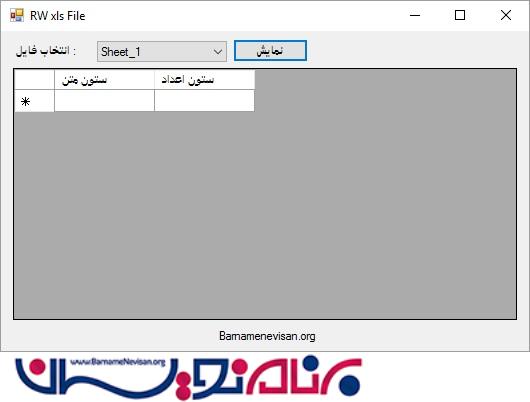
خروجی خواندن و نوشتن فایل xls با استفاده از ADO.net بصورت زیر است :
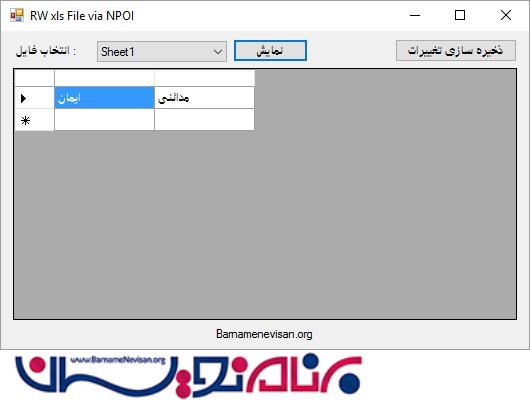
خروجی خواندن و نوشتن فایل xls با استفاده از NPOI بصورت زیر است :
آموزش سی شارپ

- C#.net
- 5k بازدید
- 5 تشکر